Deskripsi
Booking Calendar – Booking Plugin for Appointments, Reservations, Rentals, Events
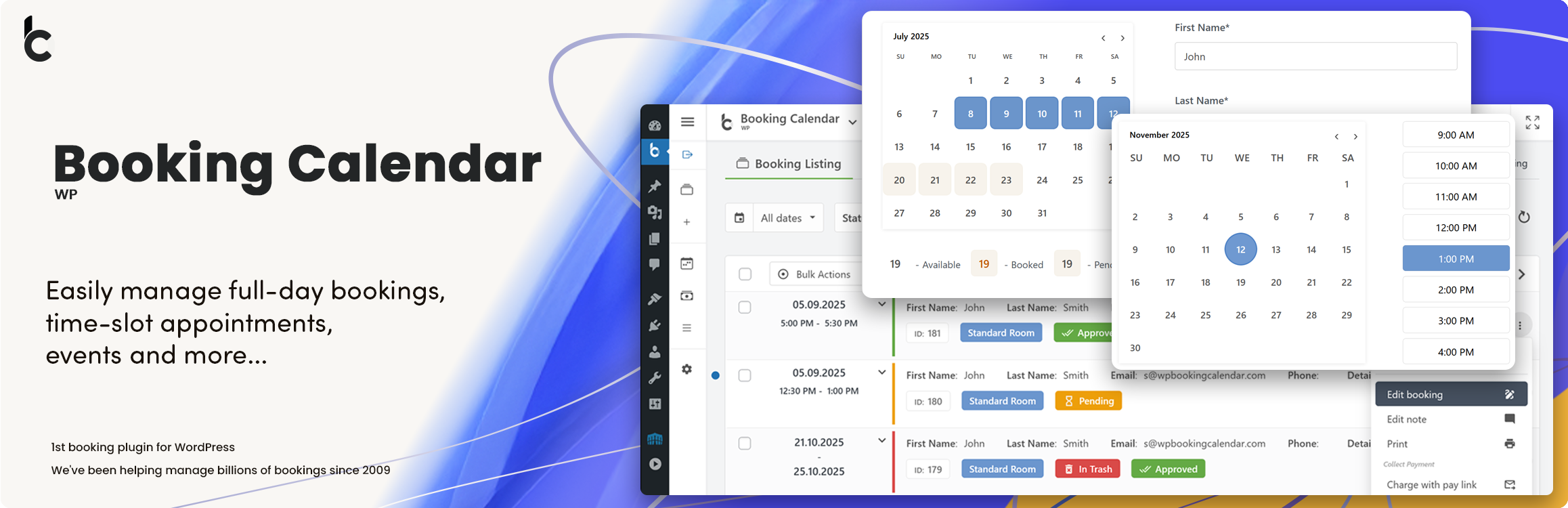
WP Booking Calendar is a flexible WordPress booking plugin for appointments, reservations, rentals, and events. Add a responsive availability calendar and booking form to your website, accept online bookings, and manage them from a modern admin panel.
Use Booking Calendar for full-day bookings, time-slot appointments, service scheduling, event registration, inquiry forms, request forms, or even as a simple multi-step contact form with built-in request listing and email notifications.
Features | See Demos | FAQ | Get Support
Best for appointments, service scheduling, property rentals, equipment rentals, consultations, classes, events, and availability management.
Key Features
- Accept full-day, appointment, and time-slot bookings.
- Display availability and prevent double bookings.
- Create customizable booking and inquiry forms.
- Manage, approve, decline, and edit bookings in WordPress.
- Send email notifications to administrators and customers.
- Build multi-step forms with the Drag & Drop Form Builder.
- Block unavailable dates and time intervals.
- Synchronize bookings using .ics feeds.
- Import Google Calendar events.
- Use responsive booking forms on desktop and mobile.
Booking Calendar for Different Businesses
Use Booking Calendar for appointment scheduling, service reservations, property and equipment rentals, consultations, classes, events, and other availability-based bookings.
Booking Calendar Free includes the essential tools for displaying availability, accepting booking requests, preventing double bookings, sending notifications, and managing reservations in WordPress.
Paid editions add multiple booking resources, online payments, seasonal pricing, advanced availability rules, availability search, and MultiUser administration.
Full-Day Booking Process in Booking Calendar Free
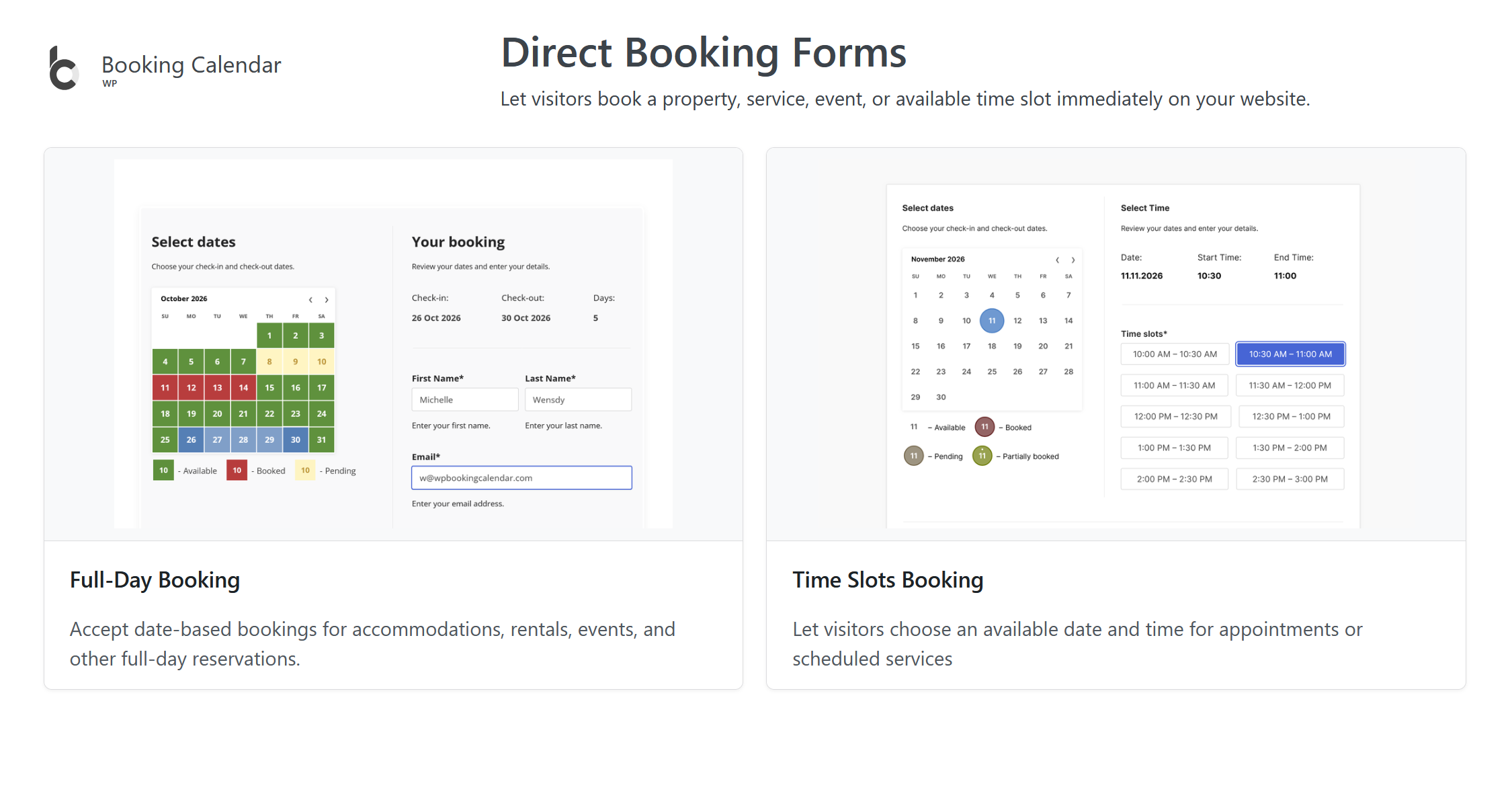
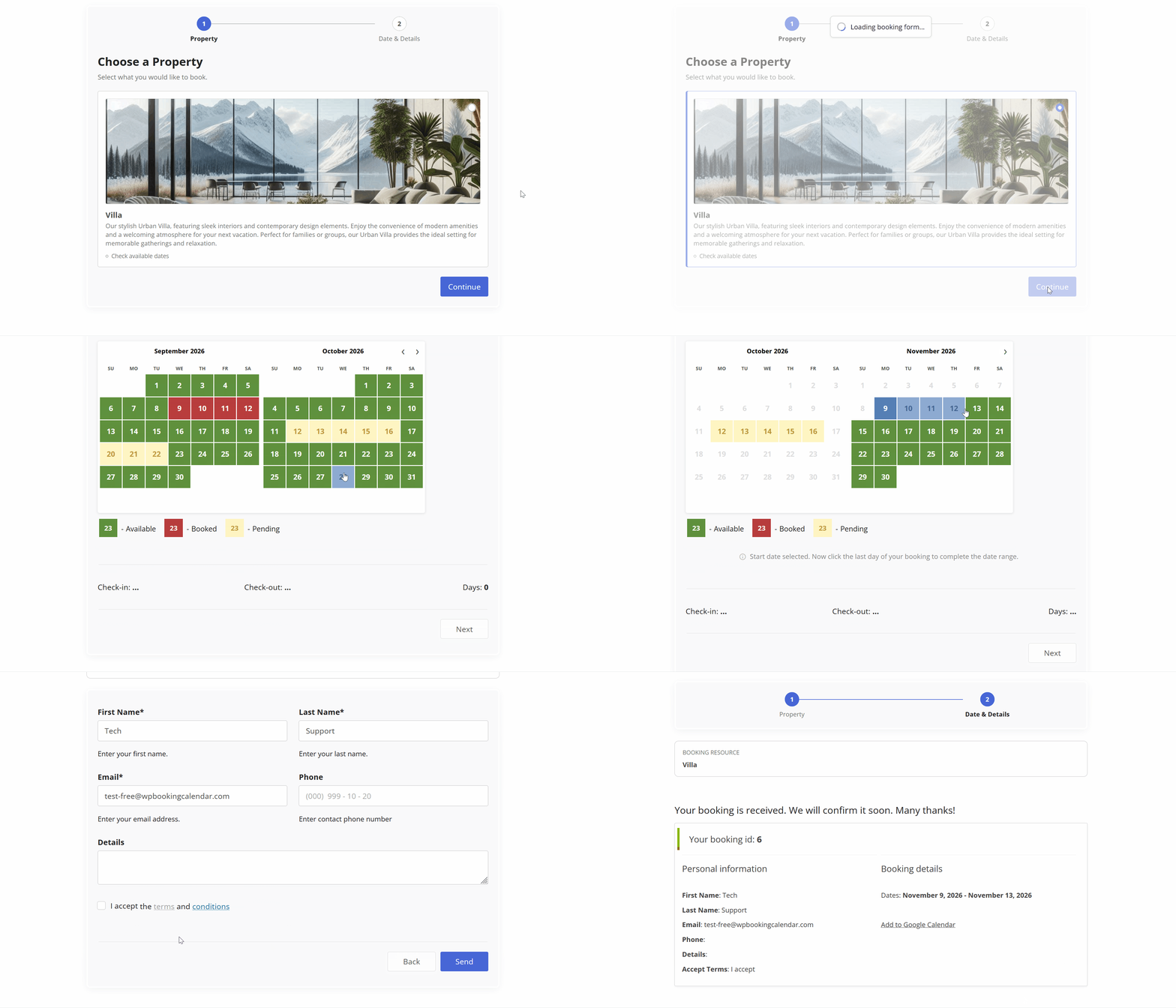
Let visitors complete a full-day property booking through a clear two-step flow. Customers select a property, review available, booked, and pending dates, choose their check-in and check-out dates, enter their contact details, and submit the booking request. The confirmation displays the complete booking summary and provides an option to add the selected dates to Google Calendar.
Appointment Booking with Services and Providers
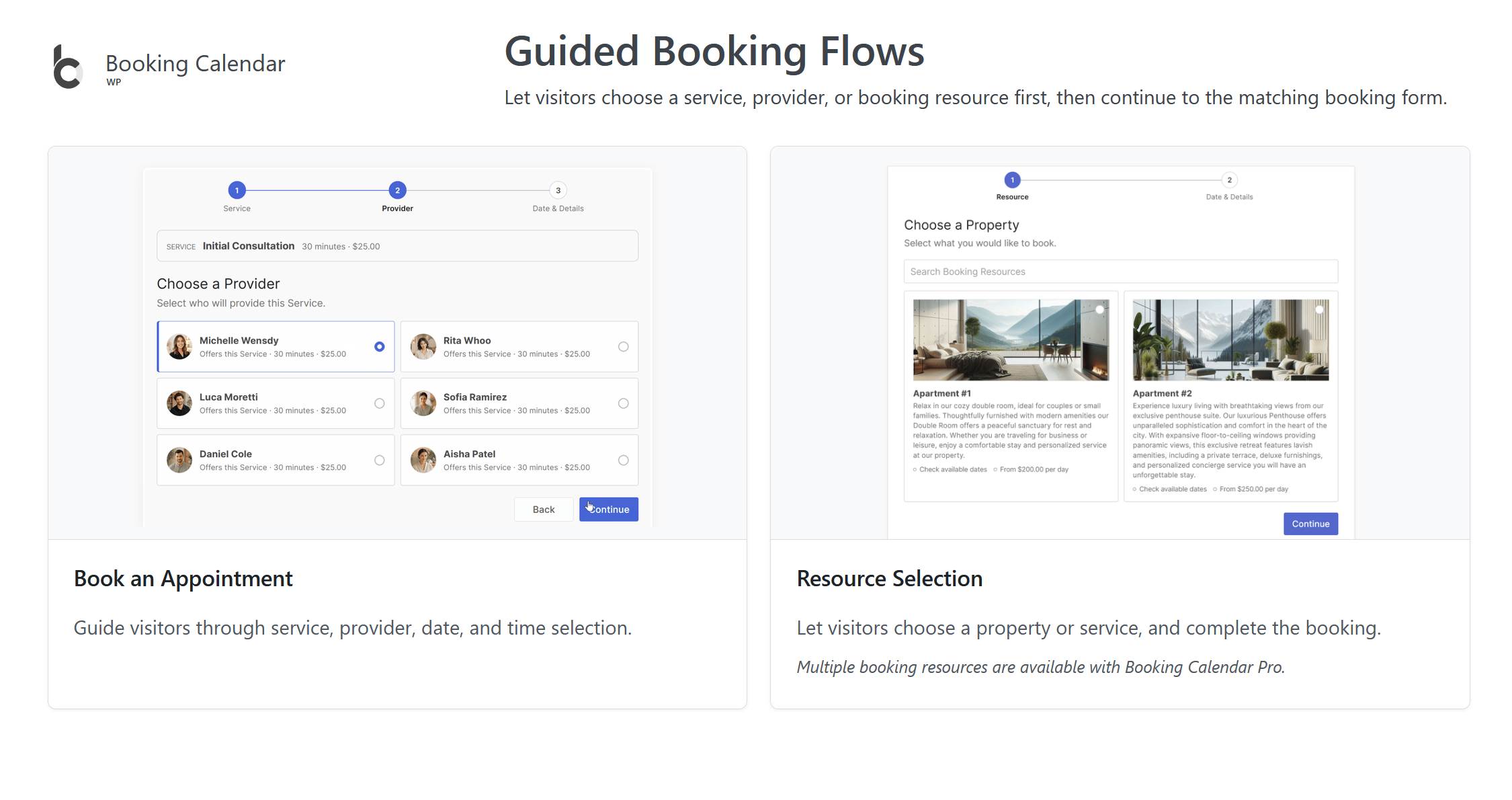
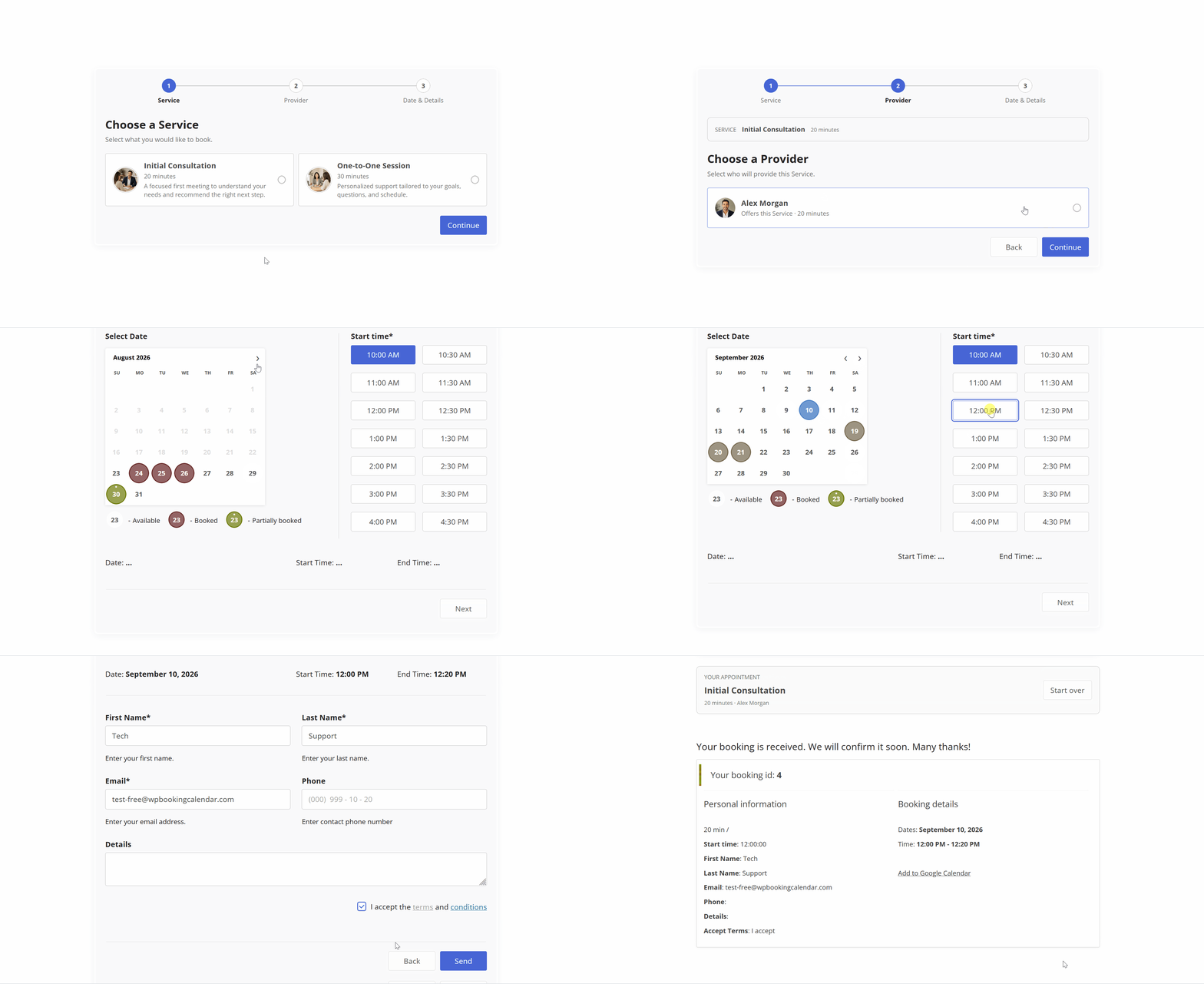
Let visitors book appointments through a simple step-by-step flow. Customers choose a Service and an available Provider, select a date and start time, enter their contact details, and submit the booking. The confirmation displays the complete appointment details and provides an option to add the appointment to Google Calendar.
Tangkapan Layar

Blok
Plugin ini menyediakan 1 blok.
- Booking Calendar
Instalasi
Installing the plugin is easy. Just follow one of the following methods:
Install Booking Calendar from within WordPress
- Visit the plugins page within your dashboard and select ‘Add New’
- Search for “Booking Calendar by oplugins”
- Activate Booking Calendar from your Plugins page
- You’re done!
Install Booking Calendar Manually
- From the dashboard of your site, navigate to Plugins –> Add New.
- Select the Upload option and hit “Choose File.”
- When the popup appears select the booking.zip or booking-x.x.zip file from your desktop. (The ‘x.x’ will change depending on the current version number).
- Follow the on-screen instructions and wait as the upload completes.
- When it’s finished, activate the plugin via the prompt. A message will show confirming activation was successful.
That’s it! Just configure your settings and insert booking form shortcode into a page, and you’re on your way to receive the bookings. Need help getting things started? Check out our FAQ and video guides for help with settings and features.
Tanya Jawab
Please see FAQ.
-
Booking Calendar Personal (or higher versions)
– Multiple booking resources (calendars) – create an unlimited number of booking resources (calendars), which can be your services, properties, or any other items that can be booked by visitors in separate unique calendars.
– Advanced configuration of booking form and emails – fully customize the appearance of your booking form and email templates.
– Manage bookings – perform various actions such as CSV export, adding notes, editing, duplicating, changing resources, and much more…Booking Calendar Business Small (or higher versions)
– Online Payments – accept online payments for your bookings, with support for various payment gateways like Stripe, PayPal, Authorize.Net, Redsys, and more.
– Changeover Days – enable split bookings marked by vertical or diagonal lines, allowing visitors to check out and check in on the same date.
– Advanced range selection rules – enable fixed ranges with one click, configure minimum and maximum lengths or specific permitted lengths, and restrict range starts to selected weekdays.
– Auto Approval / Cancellation – set up automatic cancellation of unpaid pending bookings after a specific time, or enable auto-approval for incoming bookings.
– Advanced Hourly Bookings – increase the flexibility of your Booking Calendar by allowing visitors to book specific start and end times or duration of time, ensuring precise scheduling for your services.Booking Calendar Business Medium (or higher versions)
– Seasonal Prices – customize the daily cost (rates) for different seasons or week days with fixed costs per day or as a percentage from original daily cost.
– Multi-Day Pricing – set different cost of booking based on the number of selected days, and the ability to apply these costs only if the “Check In” day falls within a specific season.
– Last Minute Booking Discount – offer a discount for bookings, if the difference between the booking date and the check-in date is less than a specified number of days.
– Early Booking Discounts – set a discount for bookings made in advance, if the difference between the booking date and the check-in date is greater than a specified number of days.
– Advanced cost – configure the booking cost based on the options selected in the form, by adding extra charges such as taxes, additional services, or by adjusting the cost based on the number of visitors.
– Deposit payments – allows visitors to pay a part of the booking cost such as a fixed deposit value or percentage of the original booking cost after creating a booking.
– Multiple Custom Forms – create multiple form configurations, allowing you to use different forms with different form fields for each of your booking resources.
– Advanced days selection – customize the specific number of days that can be selected on specific weekdays or during certain seasons or allow specific start week days on certain season.
– Different time-slots on different days – configure different time slots for different week days or seasons.
– Advanced Season Availability – set unavailable days for specific seasons, such as holidays or weekends during summer, using conditional season filters.
– Availability from Today – limit or define the number of available/unavailable days starting from today.
– Unavailable time before or after a booking – setting the number of minutes, hours, or days needed for cleaning or other services, applicable to bookings with time slots or change-over days feature.Booking Calendar Business Large (or higher versions)
– Capacity and Availability – set the maximum number of bookings that can be made per full day or time slots in calendar, and ensure that dates in the calendar are only available until the capacity is reached.
– Search Availability – allows your website visitors to quickly search for available booking resources such as properties or services by entering check-in/out dates and other criteria like the number of guests or specific amenities.
– Coupons for Discounts – offer discounts to your visitors by creating coupon codes that can be entered in the booking form.
– Auto-Cancel Pending Bookings – enable automatic cancellation of pending bookings for specific dates when you approve booking for the same resource.Booking Calendar MultiUser version
– MultiUser Booking Admin Panels – enable each registered WordPress user to have their own individual booking admin panel, where they can see and manage only their own bookings, resources, and settings. This includes the ability to configure their own booking form, receive notifications to own separate emails, and activate payment gateways for their own payment accounts. -
Booking Calendar Free Features:
-
Time Slots Availability & Fast Admin Booking
Manage unavailable time intervals visually from Booking Calendar > Availability or directly from the bookings workflow using the new Time Slots Availability popup.
Administrators can choose a date range and block or unblock exact time intervals in an interactive timeline. The timeline clearly shows available, booked, unavailable, and full-day unavailable states, making it much easier to understand real availability at a glance.
Administrators can also create a new booking directly from an available time interval. Simply select an available time slot in the popup, open the booking form with the selected resource, date, start time, and end time already prefilled, and save it as a new booking.
This makes Booking Calendar especially useful for appointment scheduling, service bookings, consultations, rentals, and any workflow where administrators need to quickly review availability and create bookings from the WordPress admin panel.
Setup Wizard!
– Easy Time Appointments Configuration for your Bookings
– Set up appointment booking system in less than 2.5 minutes. Designed with a user-friendly flow, the wizard takes you step-by-step through key settings, including booking type selection, calendar appearance, availability preferences, and more. This step-by-step setup helps you get your booking system ready for your business quickly and easily.Set Days Availability
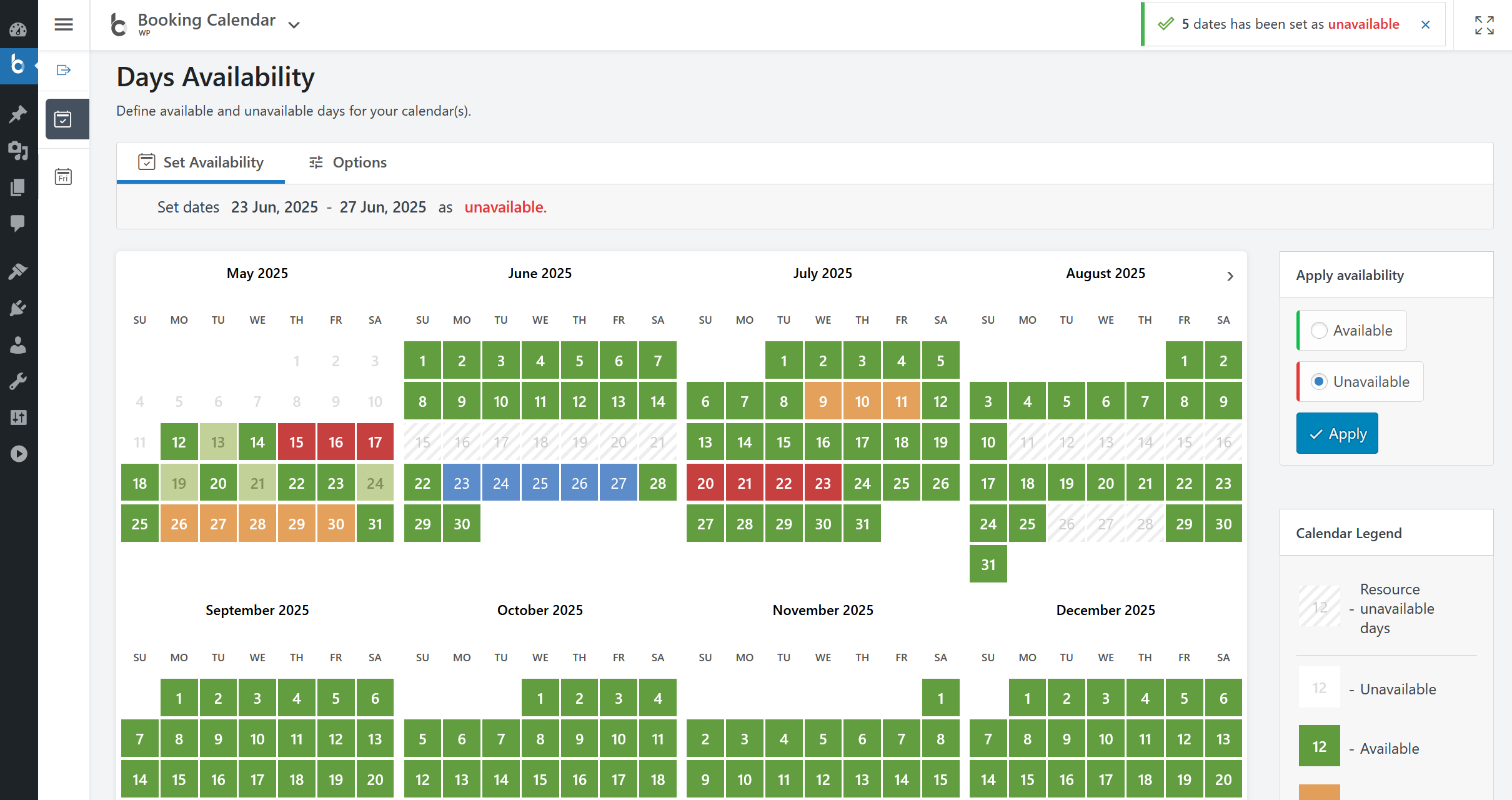
– Super easy set available/unavailable dates in calendar with just three mouse clicks.
– In Booking Calendar you can define days as available or unavailable in just a few clicks. Simply select a range of days on the calendar, choose ‘available’ or ‘unavailable’ status, and apply. It’s that simple!General
– Modern and easy to use interface.
– The plugin is designed for a vast array of businesses.
– 100% mobile-friendly and looks amazing on any device.
– Booking details are stored in your WordPress database. You don’t need other accounts.
– Multilingual support. Check all available languages at this page.Easy to start using
– Booking Calendar is an easy solution to start receiving bookings.
– You can quickly add the booking calendar to your posts or pages using WordPress blocks or shortcodes. Additionally, you can add the booking calendar as a widget to your site’s sidebar.
– Most of the settings come with predefined values and descriptions.Bookings
– Prevention of double bookings – one booking per day or time slot.
– Alternatively, you can allow unlimited bookings for the same date and time within the same calendar.
– You can enable pending bookings as available in the calendar, which lets you receive multiple bookings for the same date until you manually approve one of them. You can receive as many bookings as you need to and stop receiving bookings on specific dates once you have approved a booking.Time-Slot Bookings
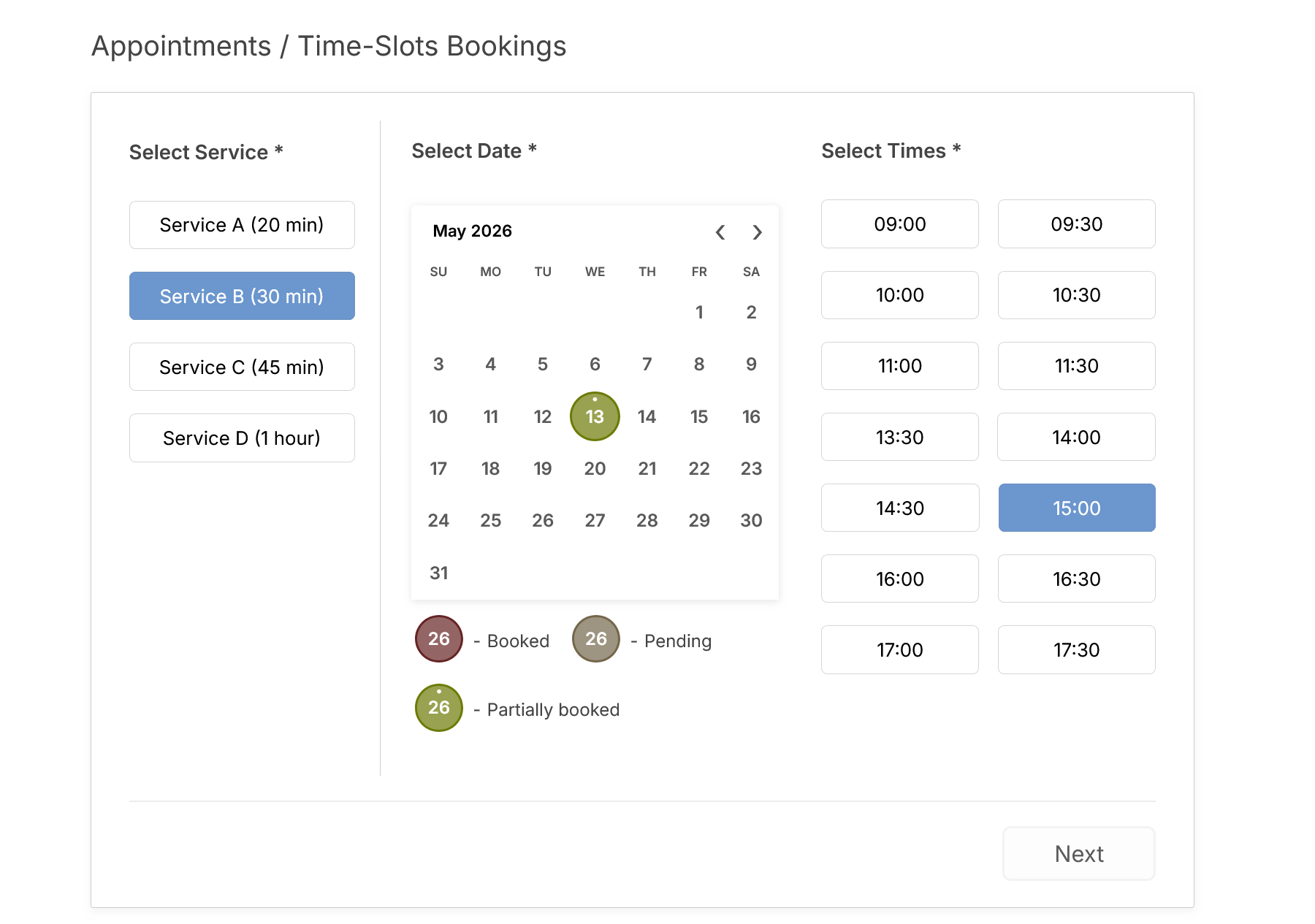
– Time slot bookings are available in the Booking Calendar Free version, which allows you to receive bookings for available time-slots during a selected day. Customers can select time slots either in a time picker or from a dropdown list, depending on your settings at Settings General page in “Time Slots” section.Calendar
Select a calendar skin that matches your website design.
Or customize the calendar colors by editing the CSS styles.
Choose to display one or several months in the calendar view.
Easily set the width of the calendar and the number of months in a row, such as 3×2 months.
Choose between single day or multiple days selection mode.
Set the number of unavailable days in the calendar, starting from today.
Specify particular weekdays as unavailable.
Show a legend on the calendar to help visitors understand the status of each day.Booking Form
Easily customize your booking form fields to capture all the necessary information for each booking. Choose which fields are required and which are optional, and customize field labels as needed. Plus, the booking form includes CAPTCHA support to prevent spam submissions.Timeline
Timeline view allows you to display all your bookings in a yearly, monthly, or daily view on the front-end of your website, giving your visitors a quick and comprehensive overview of your schedule.Booking Admin Panel
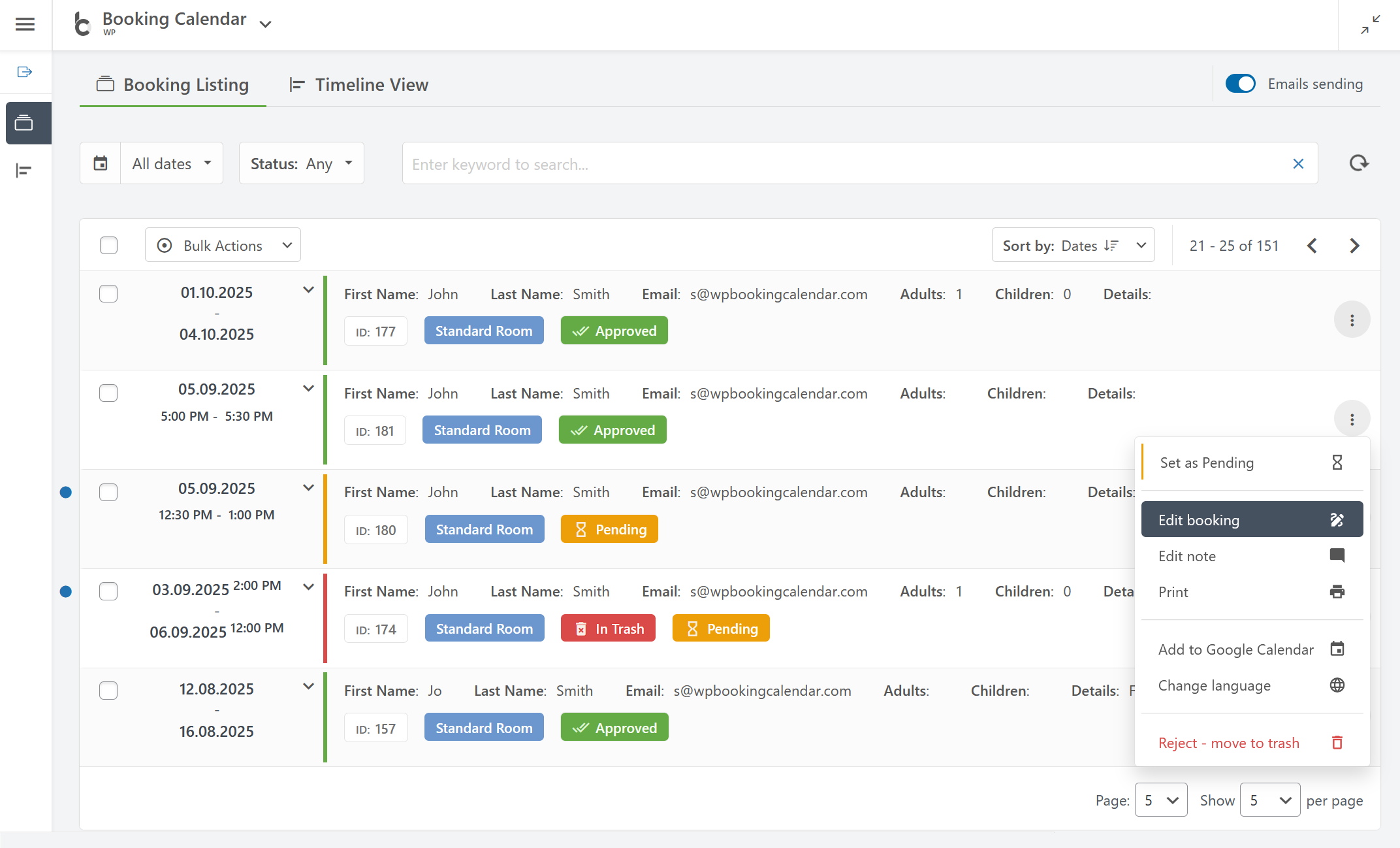
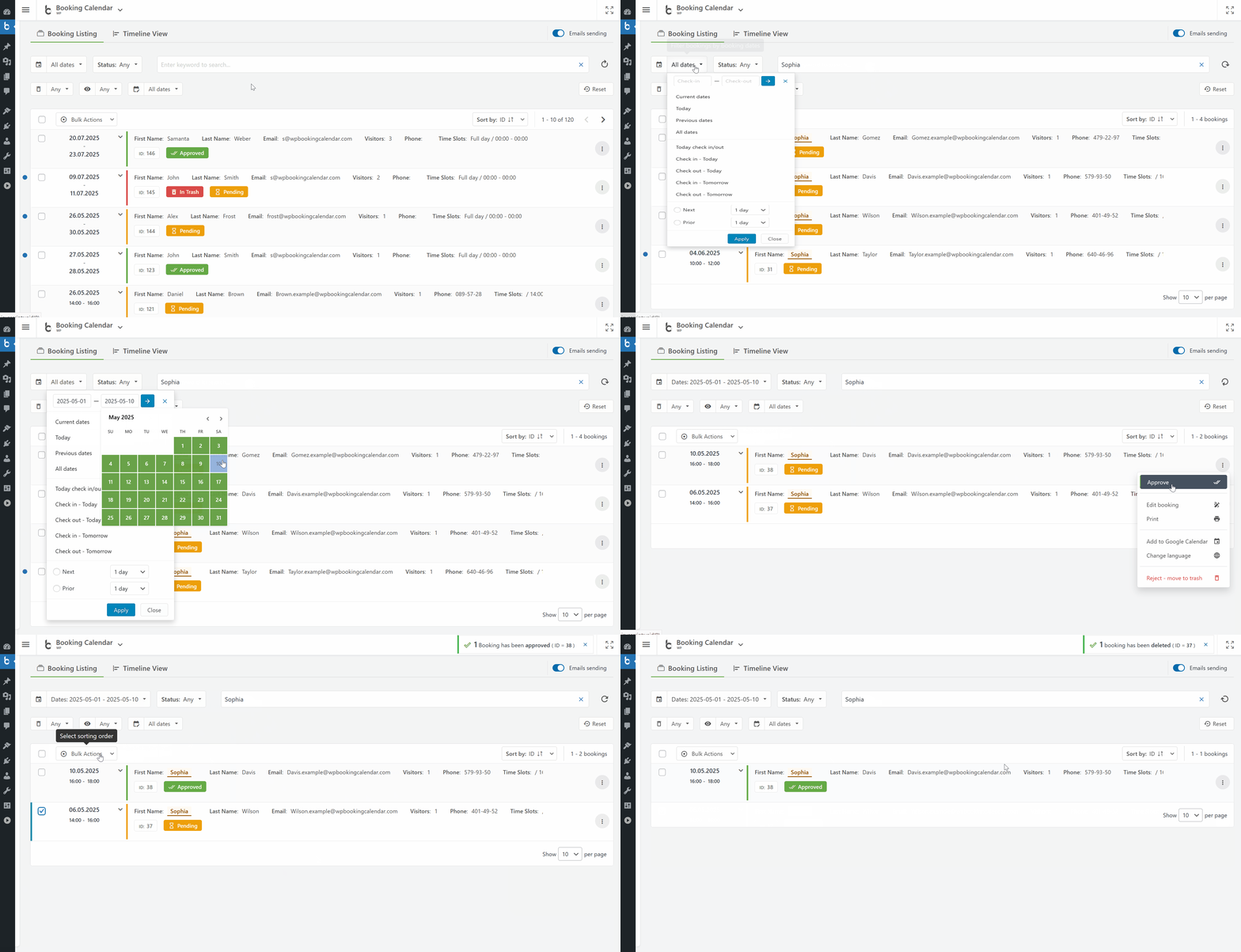
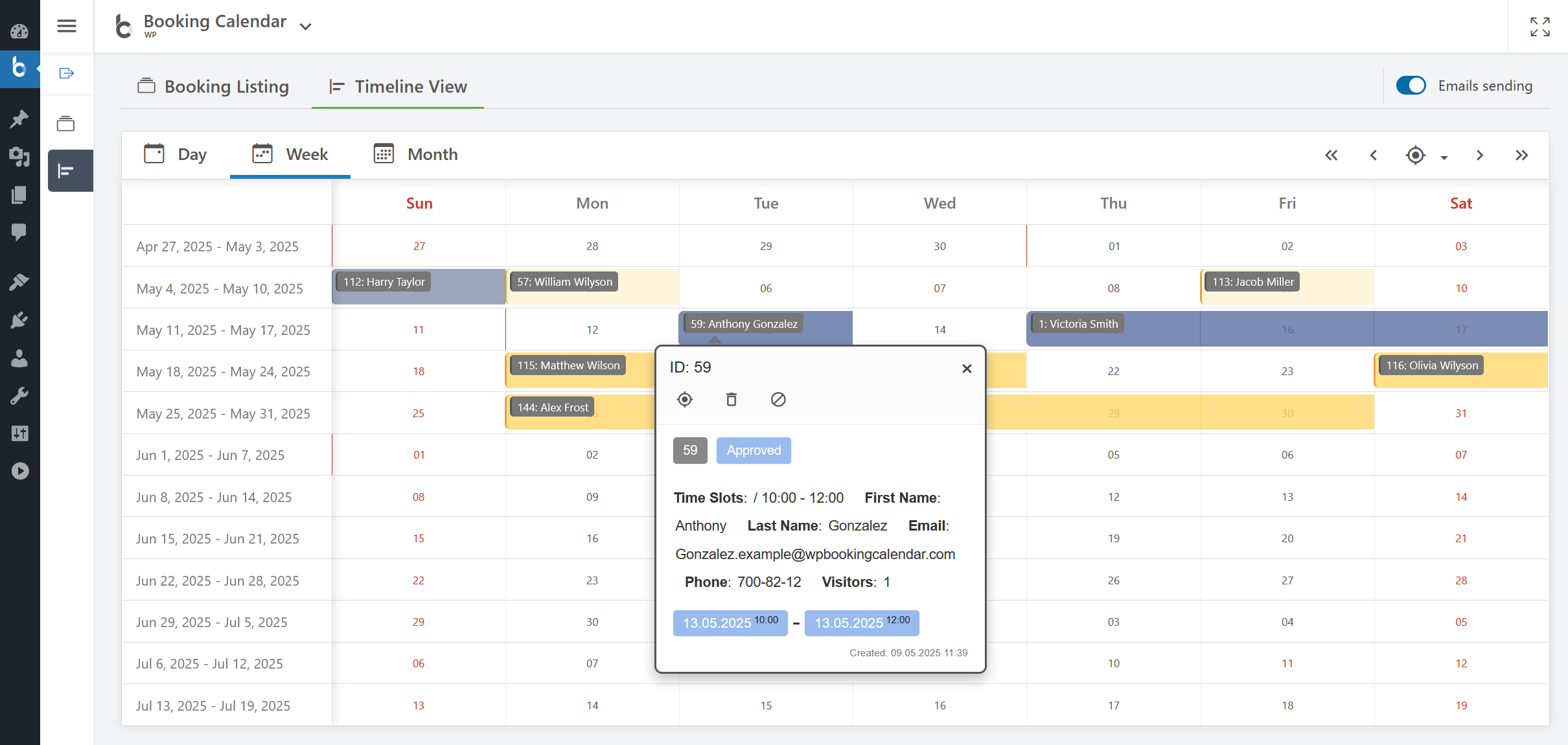
– Easily manage your bookings with a modern and clear Booking Listing panel or with the intuitive Calendar Overview mode.
– The Booking Listing makes it very simple to find the required reservations. It provides searching by different criteria and immediate results based on keywords.
– Get a complete picture of your schedule with the Calendar Overview in day, week, or month view mode.
– Approve, decline, or edit details in required bookings.
– Print a list of your bookings.
– Get the number of new bookings on the booking dashboard section.Google Calendar Integration
– Import events from your Google Calendar to the Booking Calendar plugin.
– With just one click, add bookings to Google Calendar from the Booking Listing page using export button near each booking(s).Sync bookings
– Easily import and export events using .ics feeds or files with native integration with our Booking Manager plugin.
– Import events from various sources, such as Airbnb, Booking.com, HomeAway, TripAdvisor, VRBO, FlipKey, and any other calendar that uses the .ics format.
– Customize parameters such as date conditions and maximum number of items to import in the import shortcodes.
– Export bookings by configuring custom URL for your.ics feed. This feed can then be imported into services that use the .ics (iCal) format, such as Google Calendar or Airbnb, etc…Email Notifications
Configure email confirmation to be sent to the site administrator and visitors for specific booking actions, such as new booking creation, approval or decline of bookings. You can customize the content and format of the emails, and also change the administrator email address to receive notifications.Other settings
Customizable date format for your bookings.
Two-click range selection for choosing any continuous range of available booking dates.
Restriction of access to plugin menus for standard WordPress user roles.And much more… Explore more features in premium versions of plugin.
-
Booking Calendar is great for
-
Whether you’re renting a property or you’re a sole business owner looking to automate your service bookings, Booking Calendar can help you.
– Resource scheduling (bed & breakfast, houses, apartments, etc.)
– Client scheduling (photographers, lawyers, beauty salons, spas, etc.)
– Meeting scheduling (coaching, phone advice)
– Patient scheduling (doctor, dentists, clinic, medical)
– Equipment rentals (yachts, boats, cars, bikes, technics, etc.)
– Event scheduling (conference, course, fitness center, yoga class, gym)
– Or any other service where booking for a specific time is required -
How the Booking Process Works
-
Step 1: Select your desired date(s)
Customers can select the date(s) they would like to book. The Booking Calendar plugin provides an easy-to-use calendar system that displays the availability of your property or service for those dates.Step 2: Select a time-slot (optional)
If you offer appointments or reservations at specific times, you can configure the booking form to allow customers to select an available time-slot. To learn how to set it up, please watch this video.Step 3: Fill in Booking Form Fields
The form will ask for information such as your name, contact information, and other details needed to approve the booking. The booking form fields are customizable, allowing you to configure fields required for the booking.Step 4: Submit your booking and Receive Notification of New Booking
After filling out the booking form, customers can submit the booking. The Booking Calendar plugin will notify the administrator about the new booking and send a confirmation email to customers that their booking has been received.Step 5: Manage Bookings
Administrators can manage all reservations from the modern and easy-to-use admin booking panel. Easily find the required bookings, check the booking details, and modify the booking if needed, then approve or decline this reservation. Customers will receive an email confirmation about the approval or cancellation of their booking. -
Simple steps to get started
-
1. Add booking form or availability calendar to your page
Easily insert the booking form on any page of your website using WordPress blocks or Booking Calendar widgets for sidebars or configure shortcode block in page builders like Elementor. Read more here.2. Set initial unavailable days with just few clicks
You can define days availability in just 3 mouse clicks at Booking > Availability page. Simply select a range of days on the calendar, choose ‘available’ or ‘unavailable’ status, and apply. It’s that simple!3. Configure booking form, email templates and other settings
Easily customize your booking form fields and add time slots if needed. Configure email notifications and other settings such as the calendar appearance, booking admin panel functionality, and more…4. Receive notifications and manage bookings
Get notified about new appointments and manage them in a modern admin panel. Approve, decline, or edit specific bookings. Plus, you can get a complete picture of your schedule with the calendar overview in day, week, or month view mode.5. Configure syncing of bookings with other services
Import your Google Calendar events or set up two-way synchronization of your events by using .ics feeds with various services such as Airbnb, Booking.com, VRBO, HomeAway, TripAdvisor, FlipKey, and more… Thanks to native integration with Booking Manager plugin. -
Changeover Multi-Day Bookings – Setup Wizard (Pro)
-
Configure multi-day bookings with specific check-in and check-out days, clearly marked with diagonal or vertical lines. Perfect for bookings that require split days.
Available in paid editions. -
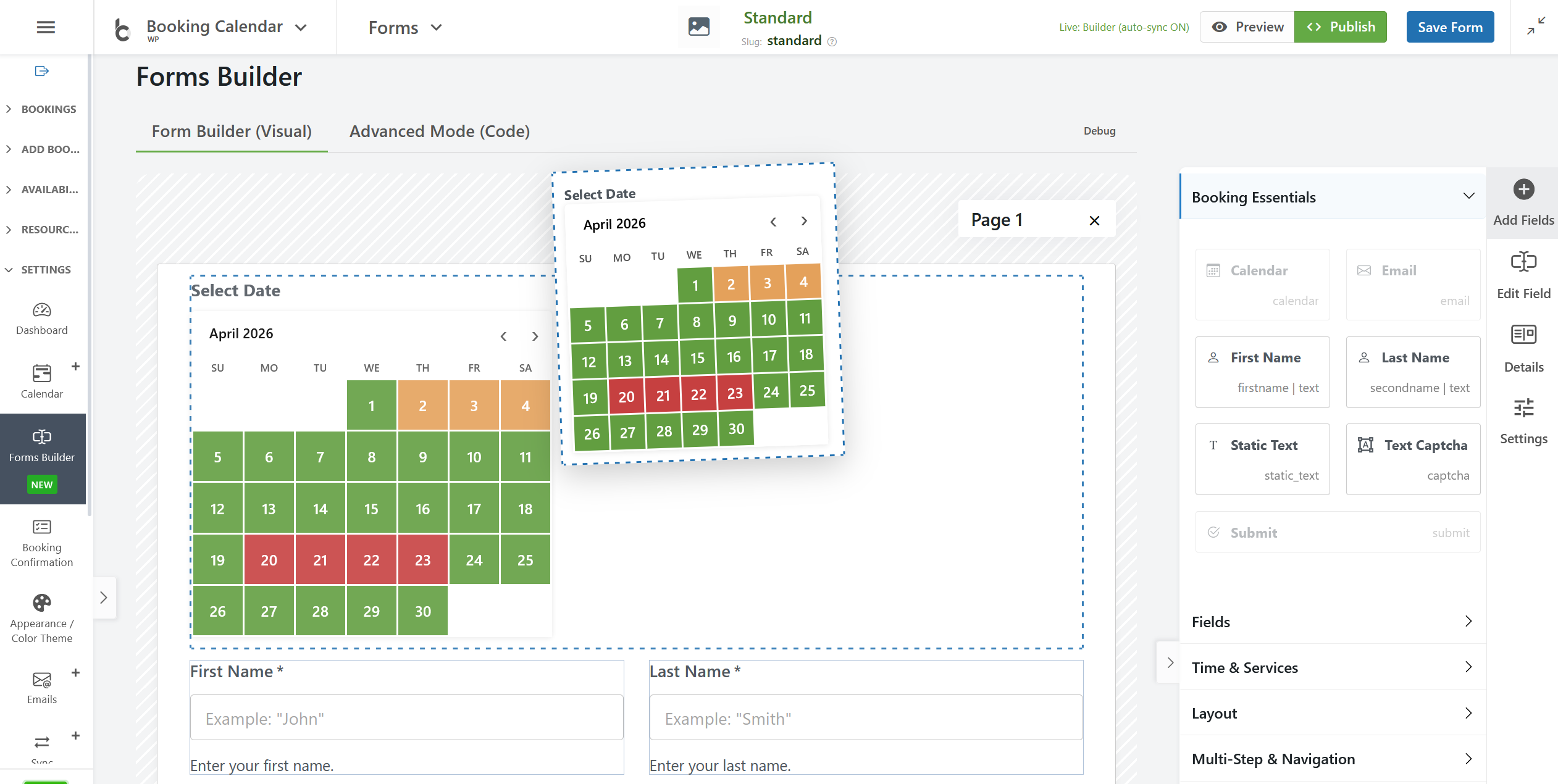
Drag & Drop Booking Form Builder
-
Create booking forms visually without manually editing complex shortcodes or form code. Simply drag fields from the sidebar, drop them into the canvas, organize them into rows and columns, edit settings in the sidebar, and preview changes instantly.
The new builder also makes it easy to create contact and inquiry forms where the calendar is optional.
With the new interface, you can:
- drag and drop fields into the form layout,
- organize fields into sections and columns,
- create multi-step form pages,
- resize columns for better layout control,
- edit field settings in the right sidebar,
- instantly preview the form while building.
This new functionality brings a more modern, user-friendly, and flexible way to create forms in Booking Calendar, making form setup faster, clearer, and much more convenient for website owners.
-
Full-Day Bookings – Drag and Drop Booking Form Builder
-
Easily configure Booking Calendar for full-day bookings with the new Drag and Drop Booking Form Builder. The new Booking Calendar Form Builder makes it much easier to create flexible booking forms without manually editing form code. It is a simple and visual way to build booking forms for different use cases directly inside WordPress.
-
Appointment Forms with Time Slots or Start Time + Service Duration Selection
-
Create a time-slot booking form in just a few minutes with the new Booking Calendar Form Builder. Visually add the calendar, time fields, and contact fields, adjust the layout, and preview changes instantly — without manually editing form code.
-
Privacy Notices
-
- Booking details are stored in your WordPress database. Booking Calendar does not send or store these booking details on our servers. Optional integrations may send data to external services that you configure. Learn more in our privacy and booking data documentation.
- Additionally please note, you can add the “required checkbox” to your booking form at the Booking > Settings > Form page, to accept your terms and conditions.
-
Support Languages (local)
-
- Find more about translation stutus on this page
-
Tech support
-
If you have some questions, which you haven’t found at FAQ you can post them at technical help board
Ulasan


Kontributor & Pengembang
“Booking Calendar” adalah perangkat lunak open source. Berikut ini mereka yang sudah berkontribusi pada plugin ini.
Kontributor


“Booking Calendar” telah diterjemahkan dalam 26 bahasa. Terima kasih kepada para penerjemah untuk kontribusi-nya.
Terjemahkan “Booking Calendar” dalam bahasa Anda.
Tertarik mengembangkan?
Lihat kode, periksa repositori SVN , atau mendaftar ke log pengembangan melalui RSS.
Log Perubahan
11.9.1
- Changes in all versions:
- Fix: Simplified Setup Wizard publishing to use the default
[booking]and[booking_appointment]shortcodes without the redundant Standard form parameter. - Security: Restricted the Block Times administration timeline to authorized, nonce-verified users and prevented its booking and availability metadata from being read through logged-out AJAX requests.
- Fix: Simplified Setup Wizard publishing to use the default
- Changes in Business Small / Business Medium / Business Large / MultiUser versions:
- Fix: Prevented Fixed and Dynamic date ranges from crossing occupied changeover stays, while preserving legal end-on-check-in and start-on-checkout boundaries, pending-date policy, and one-Resource capacity validation.
- Changes in Business Medium / Business Large / MultiUser versions:
- Fix: Prevented fixed or percentage deposits from exceeding the final booking total after discounts or an administrator cost correction, avoiding negative balances and excessive payment requests.
11.9
- Changes in all versions:
- New: Introduced a redesigned Setup Wizard that starts with the way customers should book and then shows only the relevant Date Selection, Booking Resources or Services, time, availability, Booking Form, appearance, publishing, and review steps. Choose from Single full day, Multiple independent full days, Flexible date range, Fixed-length date range, Check-in & check-out changeover, Fixed time slots, Start & end time, Start time + duration, Repeat one time on multiple dates, First-date start & last-date end, or Guided appointment flow. Journey-aware recommendations, live previews, progressive saving, resumable setup, and a final Setup overview make initial configuration and later changes much easier.
- Fix: Completed the Setup Wizard routes for Repeat one time on multiple dates and First-date start & last-date end, including compatible multi-day selection, Start and End Times, matching Booking Form defaults, and automatic Working Hours deactivation for the first-date/last-date journey.
- Improvement: Added direct “change these settings later” links on each configurable Setup Wizard page, opening the matching Date Selection, Services, Resources, Availability, Booking Form, Appearance, or Publishing screen.
- Improvement: A first activation from the Plugins page now opens Setup Wizard directly, while a manual plugin update opens What’s New on the next administration request. Automatic, command-line, and managed live-demo maintenance remains non-disruptive.
- Improvement: Refined Setup Wizard publishing so non-guided journeys start with a direct Booking Form page, Review links to the published page, and Test your booking pages places the configured result before separate starter examples.
- New: Added a two-step Appointment Services booking flow with a live date-and-time summary, duration and start-time choices, a responsive customer-details step, and safe defaults for newly created Appointment forms. Existing forms remain unchanged.
- Improvement: Added multiple non-overlapping Working Time intervals per weekday, including default and Resource-specific schedules, so breaks such as lunch remain unavailable without splitting the working day into separate rules.
- New: Added a visual Country List field to Form Builder, with a predefined country selector, validated default country, and synchronized Advanced Mode and Booking Data output.
- Improvement: Expanded visual Form Builder controls for Section spacing and overflow, reusable Static Text links and anchors, and more stable drag-and-drop editing.
- Fix: Setup Wizard now labels Fixed-length date range and Check-in & check-out changeover as Business Small+ choices, disables them in Free and Personal, and rejects unsupported submitted values on the server.
- Fix: Unified environment detection so internal Booking Calendar test sites retain Setup Wizard page publishing while exact managed public live demos remain protected.
- Fix: Corrected confirmation-page redirects in WPML language-directory setups so the booking hash remains in the URL and the new booking details are displayed.
- Fix: Clarified duplicate Booking Resource and outdated booking-form notices so hidden duplicate forms and stale page caches provide specific recovery steps instead of a generic expired-context warning.
- Fix: Separated the translation of range-end labels from email-recipient labels so date and time controls can use the correct wording.
- Improvement: Completed missing Czech translations and improved existing wording across booking forms, administration settings, and the Setup Wizard.
- Compatibility: Hardened activation and upgrades when Booking Calendar Free is installed with an older paid edition, preventing database queries from using paid-only Booking Resource columns before they exist.
- Improvement: Calendar-loading HTTP 409 errors now suggest clearing stale page, server, CDN, and optimized-file caches, while expanded browser-console diagnostics provide a stable support code and response details.
- Security: Resolved: CVE-2026-39601. Prevented simultaneous public requests from overbooking the same exclusive date or time slot on standard single-primary MySQL and MariaDB installations, while preserving booking creation on SQLite (e.g. WP Playgrounds).
- Translations: Completed 100% local translations: Spanish (Spain), Dutch, French (France), German, Italian, Japanese, Portuguese (Brazil), Ukrainian, Czech.
- Changes in Business Small / Business Medium / Business Large / MultiUser versions:
- New: Added an optional Unbookable date gaps setting under Booking Capacity that marks a bounded opening unavailable when no valid fixed or dynamic booking range can fit, while respecting changeovers, pending-date policy, conditional range rules, and capacity Resources.
- Fix: Range hover and selection now stay on the valid period containing the pointed date, clear an invalid Dynamic range so the next click can start again, and apply conditional Season, weekday, and exact-date rules consistently.
- Changes in Business Large / MultiUser versions:
- New: Added a visual Discount Coupon field to Form Builder, with configurable content and appearance, one-per-form protection, and synchronized Advanced Mode and Booking Data output.
11.8.4
- Changes in all versions:
- Improvement: Expanded Form Builder’s Custom Shortcode field to accept one supported Booking Calendar shortcode with options and quoted values, including Coupon fields in editions that provide them, while rejecting malformed or unsafe input.
- Security: Hardened form auto-fill and time-slot rendering to prevent crafted links from injecting scripts into administrator booking pages.
11.8.3
- Changes in all versions:
- Improvement: Completed Ukrainian translations.
- Security: Restricted Form Builder option requests to explicitly registered Booking Calendar settings with fixed server-defined nonces and server-owned multi-option allowlists, preventing access to core or unrelated WordPress options.
- Security: Hardened public Timeline navigation with mandatory request tokens, allow-listed Resource-link options, and JavaScript-safe response serialization to prevent reflected script injection.
11.8.2
- Changes in all versions:
- Improvement: Added a Custom Shortcode field to Form Builder so supported display tokens, including custom Form Options Cost hints in Business Medium or higher, can be placed without editing Advanced form code.
- Improvement: Added the
wpbc-hidden-on-frontendForm Builder CSS class for hiding selected elements on public forms while keeping them visible and editable in the Builder canvas. - Fix: Prevented the date-range guidance message from shifting centered calendars or leaving excessive blank space when hidden.
- Changes in Personal / Business Small / Business Medium / Business Large / MultiUser versions:
- Fix: Restored public bookings that aggregate availability from additional Booking Resources while retaining exact signed Resource validation.
- Changes in Business Medium / Business Large / MultiUser versions:
- New: Form Options Costs now support
if()conditions andmin(),max(),abs(),round(),ceil(),floor(), andclamp()functions, including nested formulas. - Security: Hardened Form Options Costs with mutation-time permission checks, published Booking Form validation, strict cost-type and expression allow lists, bounded parser input, and finite scalar runtime values.
- New: Form Options Costs now support
- Changes in Business Large / MultiUser versions:
- Fix: Restored Form Builder selection fields with a saved default, such as Adults, in the Capacity Rules Quantity field list.
- Fix: Booking Listing now summarizes multi-Resource dates once and shows each expanded date period with its reserved Resources instead of hiding or repeating child Resource labels.
11.8.1
- Changes in all versions:
- Improvement: Added a two-column, two-step Time Slots booking template with live date, start-time, and end-time summary. It appears first in Form Builder when initially added, and clean installations use it for the starter Time Slots page; updates preserve existing forms, pages, and custom URLs.
- Improvement: Added a two-step, one-time welcome flow on Booking Listing after a clean installation: start guided Setup, then test valid starter booking pages through full, uncropped previews. Clean installations now also receive a Resource Selection page for trying the resource-first workflow. The starter-pages window uses complete Booking Calendar branding and can be reopened manually from the welcome panel after automatic dismissal; updates never add these prompts, pages, the reopen action, or the initial Setup menu.
- Improvement: Refined first-run administration presentation with consistent blue and green admin actions, responsive three-, two-, and one-column starter-page cards, and a live-demo welcome section that does not save shared dismissal state.
- Fix: Corrected the first-install welcome prompt so it opens reliably through Booking Calendar’s built-in dialog on the Booking Listing page.
- Fix: Corrected the starter-page window so every card displays its page title, description, and open-page button instead of template placeholders.
- Fix: Ordered the top Booking Calendar menu links as Full day, Appointment, Time slots, Resource selection, and Contact booking forms, followed by the Home page; unavailable starter pages remain omitted.
- Fix: Kept Appointment and Rental QuickStart notices out of Form Builder so they no longer cover or compete with the editing workspace.
- Fix: On fresh template insertion, Full-Day / 2 Columns / Date Summary now appears before Full-Day / Vertical / Date Summary in the Full Days library while Time-Slots remains first overall. Existing template records are not reordered.
- Fix: Restricted automatic page creation to the first installation of the edition that owns each page. Installing Personal can add its customer booking pages once, and installing Business Small or higher can add its payment result pages once; normal updates, reactivation, and downgrades preserve existing pages and content.
- Improvement: Standardized page addresses created by newly eligible Free and paid installations under the readable
booking-calendar-prefix. Existing page addresses and custom payment URLs remain unchanged, and updates do not recreate deleted pages.
- Changes in Personal / Business Small / Business Medium / Business Large / MultiUser versions:
- Fix: Prevented a missing Booking Resources table warning during the first Pro activation.
- Changes in Business Small / Business Medium / Business Large / MultiUser versions:
- Fix: Successful payment pages now include the booking confirmation, and all payment gateways use the generated success and failure page addresses when their original placeholders are unchanged. Custom gateway URLs remain untouched.
- Fix: Restored administrator Cost correction on the full Add Booking page, dedicated Booking edit page, and Add Appointment page after the 11.8 booking-security update, while retaining the strengthened authorization checks.
11.8
- Changes in all versions:
- New: Added the spacious Full-Day / Vertical / Date Summary Form Builder template with a wide two-month preview, live date summary, guest counts, and customer details. New installations use it as the Standard form; upgrades and existing forms remain unchanged.
- Improvement: Choosing Full day during initial Setup now opens Form Builder with the new vertical full-day template selected. Published calendar month counts remain controlled by the booking block or shortcode.
- New: Added the optional Full-Day / 2 Columns / Date Summary Form Builder template with a calendar, live Check-in, Check-out, and Days summary, customer details, and a bundled preview for full-day and changeover bookings. Applying it does not replace other existing forms.
- Improvement: Refined the Classic, Appointments, and Rentals administration modes with edition-aware navigation, consistent Availability page names, easier access to Seasons, and safer page retention when switching modes. Existing bookings, resources, forms, settings, and supported integrations remain supported.
- Improvement: Simplified initial Setup to five guided steps ending in Form Builder. The legacy floating Setup Bar is now disabled by default to prevent it from overlapping other administration pages.
- Improvement: New installations now use the compact j M Y date format, such as 19 Oct 2026, when WordPress uses F j, Y. Existing saved Booking Calendar date formats are preserved.
- Fix: Check-in, Check-out, and day-count hints now consistently show … until dates are selected, including after the initial paid-edition calculation refresh.
- Security: Hardened public booking creation so unauthorized requests cannot activate administrator-only CAPTCHA, approval, payment, email, or confirmation behavior, or switch signed Appointment and Resource Selector forms into another booking workflow. Visitor-facing database errors no longer reveal SQL queries, server paths, or submitted customer details.
- Compatibility: After updating to 11.8, clear all page and CDN caches so public Booking Forms receive the new security context required for booking creation.
- Compatibility: Booking creation, activation, and security-hash updates no longer depend on the optional database
MD5()function, improving compatibility with MySQL 9.6 and newer.
- Changes in Business Medium / Business Large / MultiUser versions:
- New: Added a redesigned Seasonal Availability catalog for managing each Resource’s default availability and Season exceptions through a clear overview, a focused Resource inspector, and reviewed inline or bulk editing.
- Improvement: Added twelve-month Seasonal Availability previews with clear Available and Unavailable states, unique matching-date counts, per-Season highlighting, authorized owner information, and direct links to edit the selected Season.
- Compatibility: Existing Resource and Season settings are preserved. The Use legacy catalog pages option can temporarily restore the previous Seasonal Availability listing, and removing an exception from a Resource never deletes the Season itself.
- Security: Seasonal Availability changes recheck the current user, ownership, site, Resource, Season, and saved settings before applying protected single or batch updates.
- Changes in Business Large / MultiUser versions:
- New: Added the Searchable Resources Catalog with search-status filters, focused table views, compact rows, Cards, and reviewed editing for search visibility, result presentation, landing pages, and supported search criteria.
- Improvement: Added direct navigation to Searchable Resources, Search Form Layout, Search Results Layout, and Search Options, with a separate MultiUser Settings section for authorized administrators.
- Compatibility: Existing Search Availability settings, historical criteria, frontend result presentation, Resource ownership, and multisite configuration are preserved. The optional legacy catalog remains available.